
Running late again? Train suddenly cancelled? Subscribe once and LiveTRA will push the latest status to your phone the moment anything changes. This guide walks you through the whole setup.
Two notification modes
Notify me at a fixed time each day (most people pick this): choose a time (e.g. 30 minutes before you leave for work) and LiveTRA will send you the current delay status at that moment. One push per day — a glance before you head out is enough.
Notify me on every delay change: send me a push every time the delay minutes change. Useful when you want to watch the live status, e.g. already on the platform or picking someone up.
Also, “Notify me when cancelled” is on by default — if the whole train is cancelled you get an immediate push, regardless of which of the two modes above you chose.
Start subscribing
- Open a train’s page (tap a train on a station page, or type a train number into the search at the bottom of the home page)
- Tap the hollow heart in the top-right corner
- Pick a mode, confirm the time → tap “OK”
- The browser will ask “Allow notifications?” → tap Allow
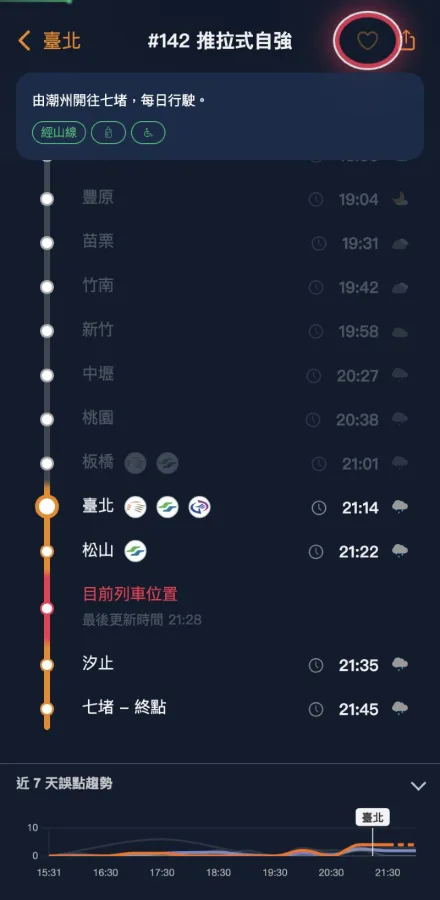
↑ The one circled in red is the subscribe button
Check which trains you’re following
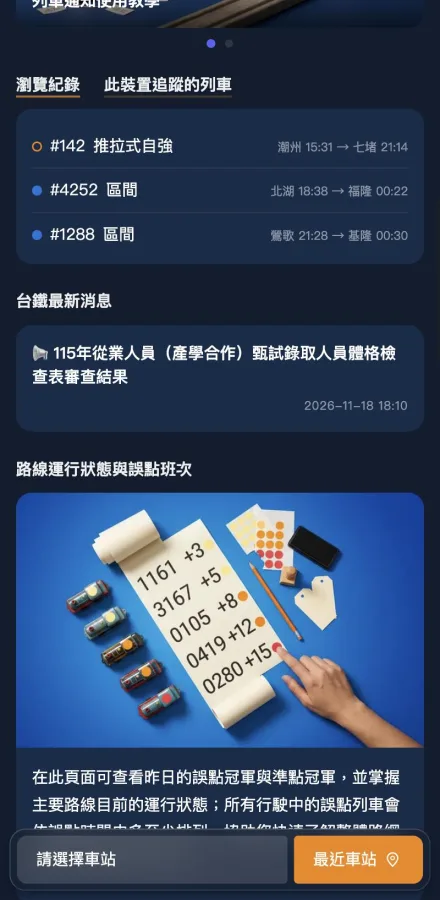
Back on the home page, scroll down to the “Browsing history / Trains tracked on this device” card and switch to the “Trains tracked on this device” tab to see the full list. Tap any entry to edit its settings or unsubscribe.
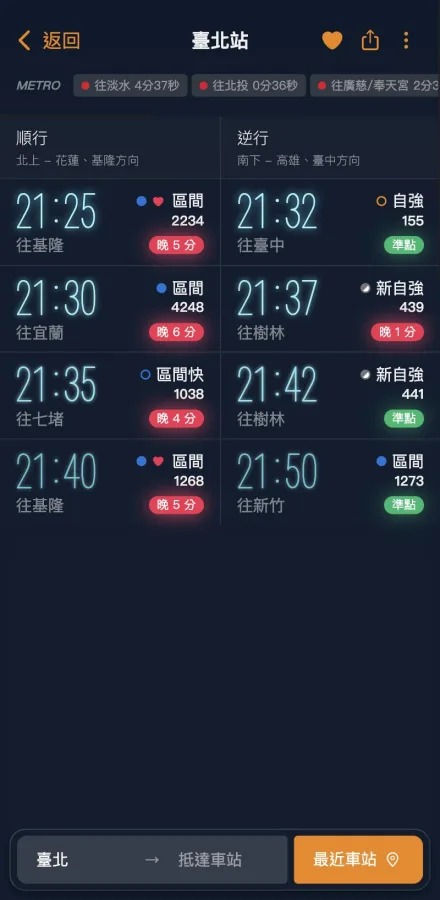
On the station timetable, any train you’re tracking shows a small red heart ❤ next to its train type — one glance tells you which trains you’re keeping an eye on.
Unsubscribe
Tap the filled heart on the train page, or tap the entry from the home page list → an “Unsubscribe” button appears at the bottom of the modal → a confirmation dialog pops up → tap “OK”.
iPhone users: add to Home Screen first
Apple’s rule: iOS Safari only allows notifications inside a PWA that has been “Added to Home Screen”. Opening the web page directly means the subscribe button is tappable, but it will just tell you to add the site to your Home Screen first.
Steps on recent versions of Safari:
- Open livetra.app in Safari
- Long-press the address bar at the bottom
- When the menu appears, tap “Share”
- In the share sheet, tap “More” at the bottom-right
- Find “Add to Home Screen”, then tap “Add” in the top-right
- After that, open LiveTRA from the Home Screen icon to use notifications
Bonus: once added to the Home Screen, the site opens as a full-screen app for a smoother experience.
Android users
Chrome / Edge / Firefox / Samsung Internet on Android all support push directly — no need to add to Home Screen. When you subscribe, the browser shows a permission bar at the top asking whether to allow notifications; tap “Allow”.
If you’re on a Xiaomi, Huawei, OPPO, or vivo device with aggressive system-level battery management, add your browser to the “Unrestricted in background” allow-list so you can still receive push notifications when the device is idle.
FAQ
Q. Set everything up but no notifications are coming?
Check three things in order: (1) notification permission for the browser (Settings → site permissions); (2) system-level notification permission on your phone; (3) whether you’re in Do Not Disturb.
Q. How many trains can one device follow?
Up to 4.
Q. I changed phones — what happens to the old subscription?
The cleanest way is to unsubscribe from the old phone using the steps above. If the old phone isn’t handy, the push service will eventually report the old device as invalid and the old subscriptions will be cleaned up automatically — they won’t occupy a slot.
Q. Is push free? Will I be charged?
Completely free. LiveTRA is a free service and push is included.
Q. How do I disable the notification feature entirely?
The cleanest way is to revoke notification permission for livetra.app in your browser settings (or on iPhone, delete the LiveTRA icon from the Home Screen). You can also unsubscribe each of the 4 tracked trains one by one.
For questions or suggestions, contact us via the feedback link on the home page. Safe travels!